How to activate your eSIM
Three simple steps — install before you travel and you'll be connected the moment you land.
Install the eSIM
Do it before you travel
Set it up in Settings
During the flight or at your destination
Automatic connection
Your phone will connect automatically
Choose your device
Automatic install (iOS 17.4+)
- 1
Open the blueGo email with your purchase confirmation
- 2
Tap the "Install eSIM automatically" link
- 3
Your iPhone will download and install the eSIM profile automatically
- 4
Note: requires iOS 17.4 or later. Check it in Settings > General > About
Set up before you travel (or during the flight)
- 1
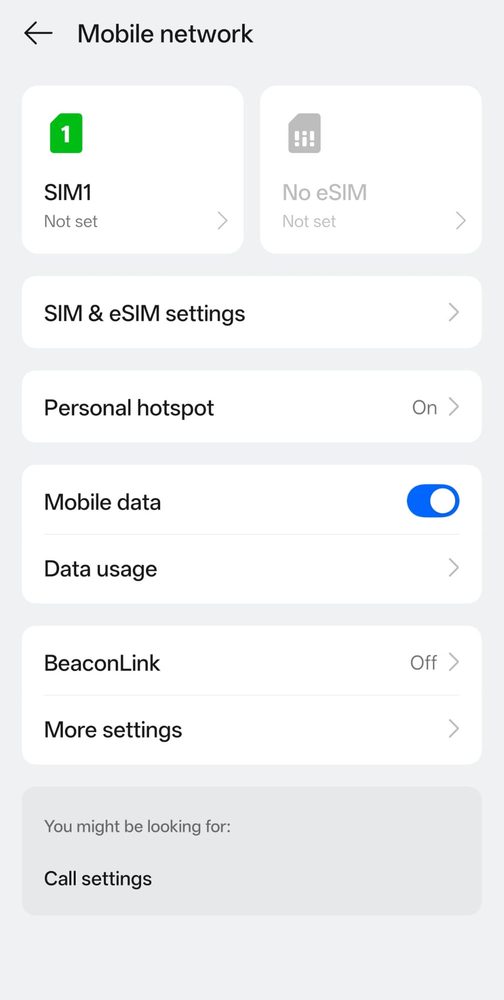
Go to Settings > Cellular/Mobile Data
- 2
Check that the blueGo line is turned on
- 3
Select the blueGo line as "Cellular Data"
- 4
In "Cellular Data Options", turn on "Data Roaming"
- 5
Turn off data roaming on your regular line to avoid charges
Troubleshooting
My eSIM doesn't connect after 10 minutes
Restart your phone and check for system updates. If it still doesn't connect, set the APN manually: Name: internet, APN: internet.
I can't scan the QR code
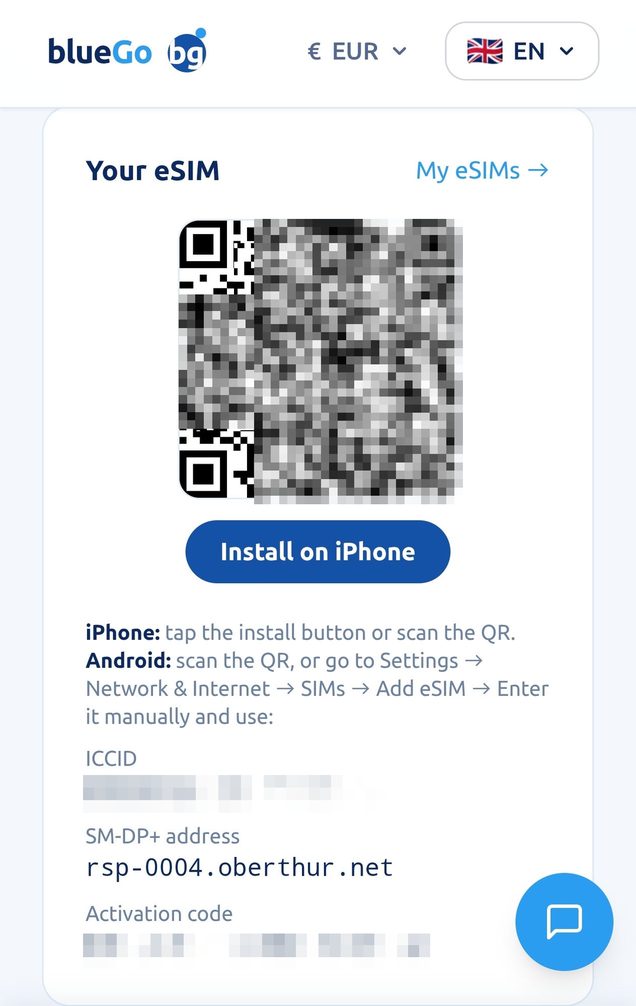
Use the manual install instead, with the SM-DP+ address and the activation code from your confirmation email.
Can I use my regular line at the same time?
Yes — your physical SIM stays active for calls and SMS while the blueGo eSIM handles your data.
Still can't connect? Contact our support